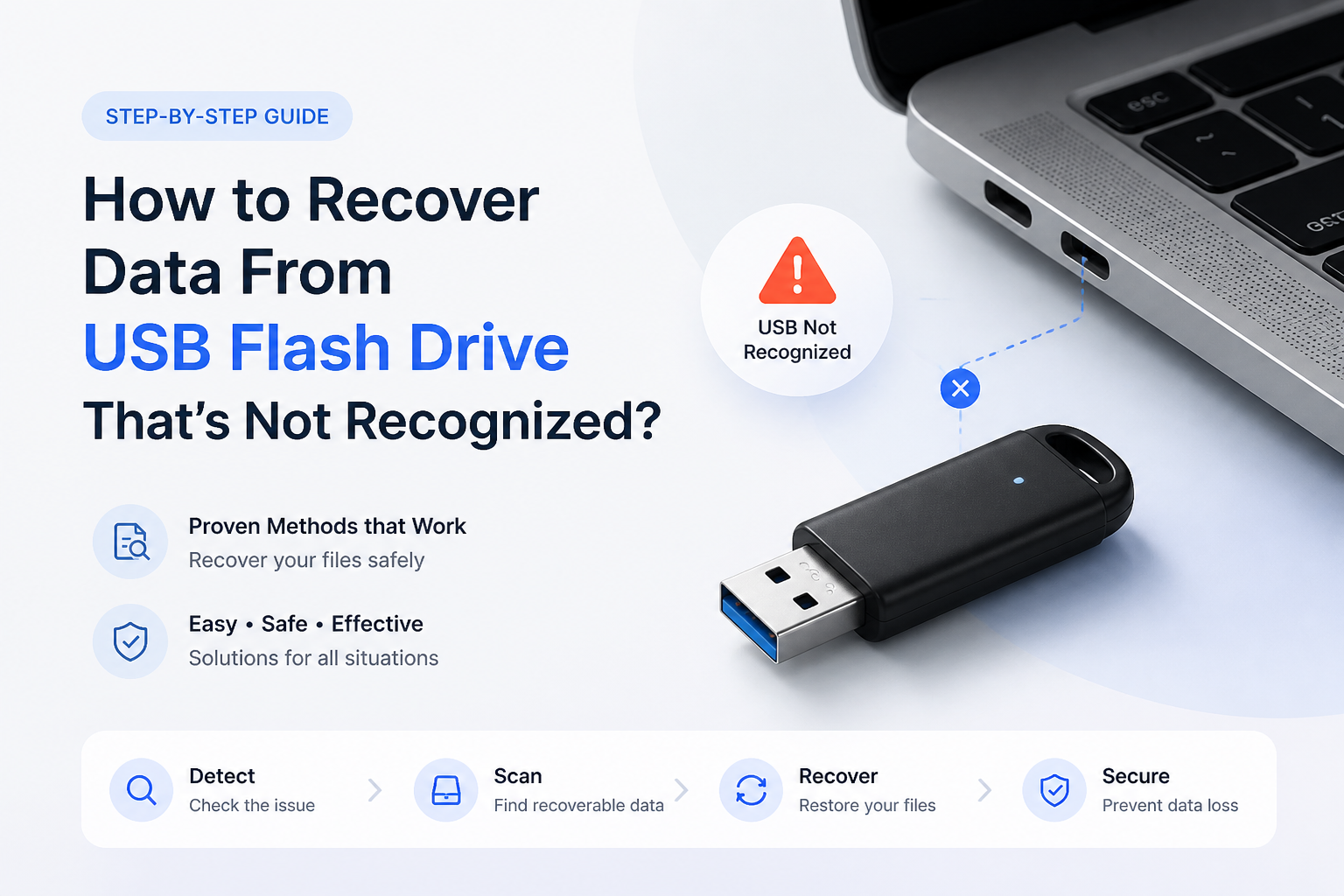
How to Recover Data From USB Flash Drive That’s Not Recognized?
A missing drive letter is fixable. A dead controller is not a software problem. Use these checks in order so you do not turn a recoverable USB drive into a harder case.
Stop writing to the USB drive, then test another port plus another computer. If the device appears in Disk Management, Disk Utility, or Disk Drill, create an image before scanning. If no system detects the physical drive, skip repair tools plus contact a recovery lab.
Do not format, initialize, erase, partition, or save recovered files onto the affected USB drive. If it disconnects repeatedly, gets unusually hot, or shows the wrong capacity, stop testing it. Those signs can point to hardware failure.
Recover From a Detected but Inaccessible USB Drive → Disk Drill
Creates byte-to-byte images · Scans lost or damaged file systems · Available for Windows plus macOS
Top 5 Ways to Recover Data From an Unrecognized USB Flash Drive
01 Test a Different USB Port or Computer
Quickly rule out a weak port, loose adapter, or local driver glitch
~3 min
Test a Different USB Port or Computer
Quickly rule out a weak port, loose adapter, or local driver glitch
Start with the boring checks because they often reveal whether the flash drive or the computer is causing the problem. Keep the drive connected only long enough to test detection.
- Unplug the flash drive, wait 10 seconds, then insert it directly into another USB port.
- Skip hubs, extension cables, monitor ports, plus unpowered adapters during this test.
- Restart the computer once, then reconnect the drive after the desktop loads.
- Test the flash drive on a second computer if one is available.
- Listen for repeated connection sounds. Stop if the drive gets hot, disconnects constantly, or has a bent plug.

02 Check Whether the System Detects the USB Drive
Best when the drive is missing from File Explorer or Finder
~5 min
Check Whether the System Detects the USB Drive
Best when the drive is missing from File Explorer or Finder
A flash drive can be absent from the normal file browser yet still appear as a physical disk. Its status here determines whether software recovery is possible.
- On Windows, right-click Start, then open Disk Management. On Mac, open Disk Utility, choose View, then select Show All Devices.
- Identify the USB drive by capacity. Double-check the size so you do not select an internal disk by mistake.
- If Windows shows a healthy partition without a letter, right-click the volume, choose Change Drive Letter and Paths, then assign an unused letter.
- If the device is marked Offline, bring it online only if Windows offers that option without requesting initialization.
- Do not initialize, erase, partition, or format a drive that still contains files you need.
03 Create an Image and Scan It With Disk Drill
Safest software route when the USB appears as a physical device
~30–90 min
Create an Image and Scan It With Disk Drill
Safest software route when the USB appears as a physical device
If the system or Disk Drill can see the physical drive, make a byte-to-byte image before recovery when possible. Scanning the image limits repeated reads from an unstable flash drive.
- Install Disk Drill on the computer's internal drive or another healthy disk, never on the damaged USB drive.
- Open Byte-to-byte Backup, select the correct flash drive, then save the image to storage with free space equal to the USB drive's full capacity.
- Return to Storage Devices, attach the saved disk image, then select Search for lost data. If imaging fails but the drive remains stable, scan the USB directly as a fallback.
- Filter the results by file type, name, size, or date. Preview several important files to check whether they open correctly.
- Select the files you need, click Recover, then save them to a different physical drive.
04 Repair the File System After Securing the Data
Useful for a detected drive with logical errors, not physical failure
~10–45 min
Repair the File System After Securing the Data
Useful for a detected drive with logical errors, not physical failure
File-system repair can restore access, but it changes structures on the USB drive. Recover or image important data first because a repair attempt can remove damaged directory entries.
- Confirm that your important files have been recovered or that a complete byte-to-byte image exists.
- On Windows, note the assigned drive letter, open Terminal as administrator, then run
chkdsk E: /fafter replacing E with the correct letter. - On Mac, open Disk Utility, select the USB volume, click First Aid, then run the check.
- Reconnect the drive after the repair completes, then test whether it opens normally.
- Copy any newly accessible files to another drive before doing more repairs or reformatting the USB.
05 Send the Flash Drive to a Recovery Lab
The right move when no computer can detect the physical device
Several days
Send the Flash Drive to a Recovery Lab
The right move when no computer can detect the physical device
Software cannot scan storage that the operating system never detects. A lab may work with the controller, circuit board, or memory chips directly.
- Stop connecting the drive if it is hot, cracked, bent, corroded, or repeatedly disconnecting.
- Place the drive in an antistatic bag or small protective case. Do not open, glue, solder, freeze, or bend it.
- Contact two or three data recovery labs, then ask whether they handle USB flash memory plus chip-level recovery.
- Request a written evaluation policy, estimated price range, privacy terms, plus an explanation of charges if recovery fails.
- Ship the drive with tracking in a padded box, keeping any detachable cap at home.
When Software Cannot Recover an Unrecognized USB Flash Drive
Recovery software needs the computer to detect some form of storage device. If Disk Management, Disk Utility, Device Manager, System Information, plus recovery software all show nothing, the controller or electronic components may have failed.
Repeated reconnection is not harmless on a failing drive. For irreplaceable files, one careful cross-computer test is enough before getting a lab evaluation.
Which USB Recovery Method Fits the Detection Problem?
Choose based on where the flash drive appears, plus how stable it remains.
| Method | Best for | Time | Success rate |
|---|---|---|---|
| 1. Test a Different USB Port or Computer TRY FIRST | Port, hub, or computer issues | ~3 min | ● 85% |
| 2. Check Whether the System Detects the USB Drive | Missing drive letter or hidden volume | ~5 min | ● 78% |
| 3. Create an Image and Scan It With Disk Drill | RAW, corrupted, or inaccessible drives | ~30–90 min | ● 72% |
| 4. Repair the File System After Securing the Data | Logical file-system damage | ~10–45 min | ● 55% |
| 5. Send the Flash Drive to a Recovery Lab | Undetected or physically damaged drives | Several days | ● 65% |
Which USB Recovery Method Should You Use?
Begin with another port plus another computer. If the flash drive appears as a physical disk but its files remain inaccessible, create an image, then scan the image with Disk Drill. Save file-system repairs for after recovery. Choose a professional lab when the device is absent everywhere or shows physical-failure symptoms.
Write down the USB drive's reported capacity plus status before changing anything, then recover files to a separate physical disk.