TestDisk Partition Recovery Review 2026
TestDisk can rebuild a lost partition table without charging a cent. Its cryptic workflow, limited previews, plus high-stakes write commands make it hard to recommend to most home users.
TestDisk found several lost partitions, but using those results safely required more storage knowledge than a typical recovery app should demand. Disk Drill offers clearer scan results, visual previews, plus a safer path for copying files before attempting partition repair.
TestDisk can write changes directly to a partition table, so choosing the wrong disk geometry or partition entry may turn a recoverable problem into a messier one.
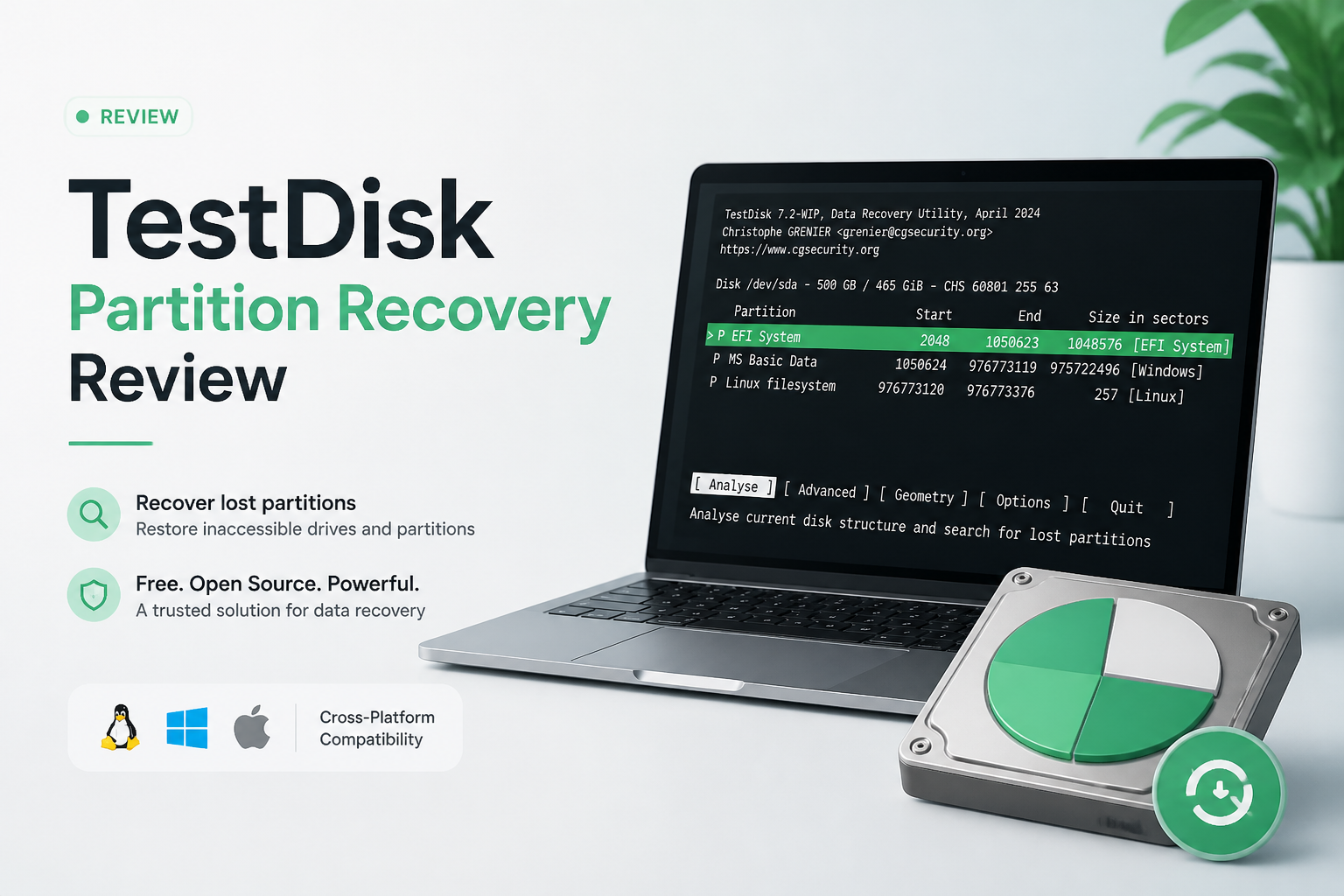
TestDisk at a Glance
5.2/10TestDisk is a free, open-source utility for finding lost partitions, repairing some filesystem structures, plus copying files from damaged volumes. It runs through a text-based interface rather than a normal desktop window.
Best forExperienced technicians handling a known partition-table problem on an imaged drive
- Lost partition search
- Partition-table reconstruction
- NTFS plus FAT boot-sector repair
- File copying from readable volumes
- PhotoRec signature recovery included
- Free with no data cap
- Strong lost-partition search
- Runs across major desktop systems
- Confusing text interface
- Risky manual write steps
- Weak file previews
TestDisk Partition Recovery Performance by Category
01 Lost Partition Detection
Good results once the correct disk options are selected
7.2/10
Lost Partition Detection
Good results once the correct disk options are selected
TestDisk’s main strength is finding partitions that vanished after a deleted entry, damaged partition table, or certain boot-sector problems. Its Quick Search located the prepared NTFS partition in our test image. Deeper Search found an older FAT32 entry, though it took much longer.
The trouble starts when several plausible partitions appear. TestDisk shows technical details rather than giving a plain explanation of which result is likely current. You must check sizes, starting sectors, filesystem types, plus file listings before marking anything as primary or logical. The official partition recovery guide helps, but it still assumes you understand the underlying disk layout.
- Quick Search can locate recently lost partitions
- Deeper Search picks up entries missed by the initial pass
- Supports common NTFS, FAT, exFAT, plus Linux filesystems
- Lets users inspect files inside many detected partitions
- Multiple old partition records can look equally valid
- Results require manual interpretation of disk structure
- Deeper Search may run for hours
02 Recovery Safety
Non-destructive scanning leads to consequential write choices
4.3/10
Recovery Safety
Non-destructive scanning leads to consequential write choices
Scanning is mostly cautious. TestDisk does not immediately rewrite a drive when it launches, plus it lets you inspect detected partitions first. That part is reassuring.
The final steps are less forgiving. The Write option updates the partition table, while boot-sector tools can replace damaged structures. There is no polished rollback screen or automatic image-first workflow. A user who misreads an old partition entry can write the wrong layout. We would copy important files or create a full disk image before making any repair.
- Scans do not automatically alter the source disk
- File copying offers an alternative to immediate repair
- A log file records useful session details
- Partition-table changes carry serious consequences
- No automatic backup before writing changes
- Warnings do not fully explain what could go wrong
03 Ease of Use
Keyboard navigation with little room for casual guessing
3.1/10
Ease of Use
Keyboard navigation with little room for casual guessing
TestDisk runs in a text interface controlled through arrow keys, Enter, letter shortcuts, plus terse menu labels. Installation is simple enough, but the recovery path quickly asks about partition-table types, disk geometry, partition status, plus boot-sector details.
Nothing is hidden behind a paywall, yet time becomes the cost. A first-time user may need a second computer open to the manual while checking every step. Disk Drill is much easier to follow because it displays physical disks, volumes, scan progress, found files, plus recovery choices in a conventional desktop window.
- Runs on Windows, macOS, plus Linux
- No account or activation process
- Keyboard controls work in lightweight rescue environments
- Text interface feels dated plus unforgiving
- Technical terms receive little explanation inside the app
- Selecting the wrong physical disk is easier than it should be
04 File Review Tools
Basic file listing falls short of modern previews
4.6/10
File Review Tools
Basic file listing falls short of modern previews
Pressing P on a supported partition can reveal folders plus filenames. This is useful because a readable directory tree is one of the best clues that TestDisk found the correct partition.
Still, there are no thumbnail grids, recovery-chance labels, flexible filters, or broad visual previews. Photos, videos, plus documents are harder to verify before copying. Disk Drill’s preview window makes more sense when the goal is recovering selected files rather than repairing the original partition layout.
- Can display folders inside many detected partitions
- Copies selected data to another storage device
- Preserves names plus folders when filesystem metadata survives
- No thumbnail gallery for large photo collections
- Limited filtering compared with graphical recovery apps
- Fragmented media may require a different recovery method
05 Cost and Licensing
Completely free with no recovery cap
10.0/10
Cost and Licensing
Completely free with no recovery cap
TestDisk costs $0. It is free, open-source software with no file limit, subscription, activation key, or paid recovery gate. PhotoRec is included for signature-based file carving.
Disk Drill Basic also costs $0, though Windows recovery is limited to 100 MB. Unlimited recovery costs $89 per year or $149 for a lifetime license. The extra cost buys a visual workflow, previews, byte-to-byte backups, plus broader tools for common file-loss cases.
- No charge for personal or commercial recovery work
- No subscription or locked scan results
- Source code is publicly available
- PhotoRec comes in the same download
- Free software does not include guided personal support
- The learning curve can cost several hours
How We Tested TestDisk for Partition Recovery
We compared TestDisk with Disk Drill on Windows 11 using prepared 500 GB drive images. Scenarios covered a deleted NTFS partition, a damaged partition table, a quick-formatted exFAT SD card image, plus a mixed photo and document set. Each source was restored to the same starting state before a new scan.
Scores considered partition detection, usable-file recovery, scan time, clarity, preview options, plus the risk involved in finishing a recovery. Recovery-rate figures count files that opened correctly after copying, not files that merely appeared in a result list.
When TestDisk Is the Wrong Partition Recovery Tool
Avoid TestDisk when a drive clicks, disconnects, reports the wrong capacity, or becomes unusually slow. Those symptoms can point to physical trouble. Repeated scans may place more strain on failing hardware, so a professional lab may be the safer choice.
TestDisk is also a poor first pick if you cannot identify the physical disk, partition style, plus intended volume layout with confidence. If the files matter more than restoring the original partition, image the device first, then use a visual recovery app to copy data elsewhere.
How TestDisk Partition Recovery Scored in Our Review
| Category | Performance | Score |
|---|---|---|
| 01 Lost Partition Detection | 7.2/10 | |
| 02 Recovery Safety | 4.3/10 | |
| 03 Ease of Use | 3.1/10 | |
| 04 File Review Tools | 4.6/10 | |
| 05 Cost and Licensing | 10.0/10 |
TestDisk vs Disk Drill: Partition Recovery Head to Head
Identical hardware, identical test scenarios. Here is how they compared.
| Metric | TestDisk | Disk Drill |
|---|---|---|
| SSD recovery rate | 58% | 81% |
| SD card recovery | 64% | 89% |
| Quick scan time (500 GB) | 11 min | 7 min |
| Deep scan time (500 GB) | 96 min | 71 min |
| Free recovery limit | Unlimited, manual workflow | 100 MB on Windows |
| License model | Free, open source | One-time $149 |
| Email support response | No official personal support | ~9 hours |
| Overall score | 5.2 / 10 | 8.8 / 10 |
What to Use Instead
Disk Drill is easier to inspect, safer to trial, plus more useful when you want files back without rewriting a partition table first.
01 Disk Drill
A clearer route from damaged disk to recovered files
8.8/10
Disk Drill
A clearer route from damaged disk to recovered files
Disk Drill is the better fit for most people facing a missing partition, formatted card, or accidentally deleted files. It places scan results in a visual browser with search, filters, previews, plus recovery-chance indicators. That removes much of the guesswork found in TestDisk.
The byte-to-byte backup tool is another practical advantage. You can image questionable media, then scan the image rather than repeatedly stressing the original device. Disk Drill costs more, but the free version lets you scan plus preview results before deciding whether a paid license makes sense.
- Visual previews help verify photos, videos, plus documents
- Byte-to-byte backup is built into the application
- Lost partition search runs alongside other scan methods
- One license covers Windows plus macOS
- Advanced Camera Recovery handles certain fragmented video cases
- Unlimited recovery requires a paid license
- The $149 lifetime option may be excessive for one deleted file

What Recovery Users Say About TestDisk
A user recovering a formatted camera card said TestDisk produced corrupted files plus thumbnails, while Disk Drill recovered the needed video footage with a clearer browsing interface.
A Windows user reported that PhotoRec plus other tools failed on a RAW SD card with fragmented camera video. Disk Drill recovered the photos in roughly ten minutes, with its camera recovery mode proving useful for the video files.
Should You Use TestDisk for Partition Recovery?
TestDisk remains useful for technicians who understand partition tables plus know exactly what needs repairing. Everyone else should skip its write-heavy terminal workflow, especially when the missing files are irreplaceable.
Start with Disk Drill instead. Its free scan, file previews, plus disk-image tools give you more information before you commit money or change anything on the affected drive.
Stop using the affected disk, create a byte-to-byte image on a separate healthy drive, then scan the image before attempting any partition-table repair.