Disk Drill Review: How Easy Is It for Beginners?
Disk Drill makes a stressful recovery job feel surprisingly manageable. The scan-to-preview workflow is clear, though its free tier plus refund terms deserve a close look before payment.
Disk Drill is one of the easier recovery apps for beginners because the main process boils down to choosing a drive, starting a scan, previewing results, then saving files elsewhere. Try the free scan first since a detected filename alone does not prove that the file is intact.
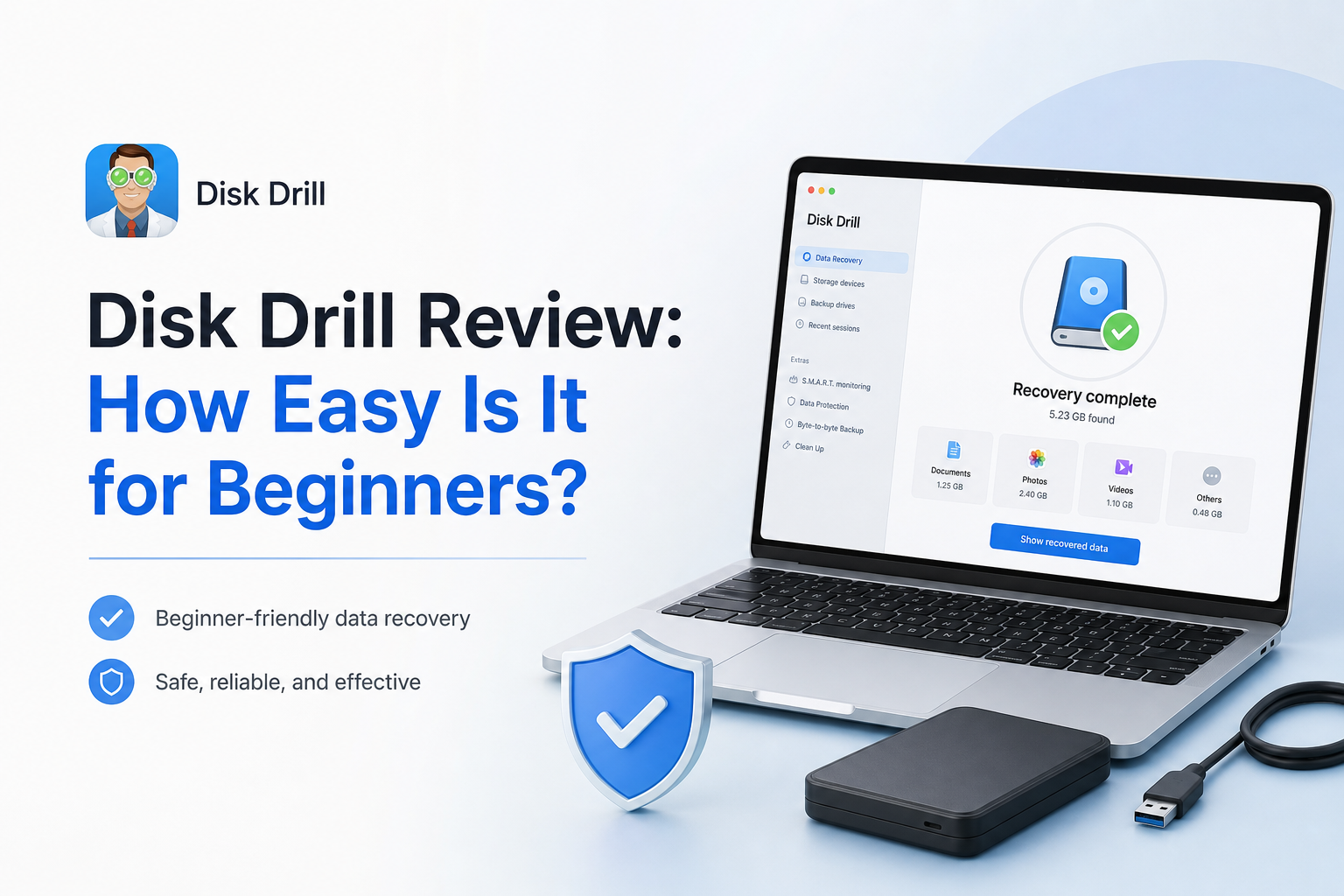
Disk Drill at a Glance
8.7/10Disk Drill is an installable data recovery app for Windows plus macOS. It searches readable storage devices for deleted, formatted, missing, or reconstructed files.
Best forHome users recovering photos, documents, or camera footage from a healthy drive or memory card
- Combined lost-data scan
- File preview plus recovery chance labels
- Advanced Camera Recovery
- Byte-to-byte disk imaging
- S.M.A.R.T. drive monitoring
- Very approachable interface
- Strong preview tools
- Built-in disk imaging
- Tiny Windows free recovery limit
- Refund terms are strict
- Results may lose folder structure
Disk Drill’s Beginner Experience in Detail
01 Beginner Ease
A calm path through a stressful task
9.4/10
Beginner Ease
A calm path through a stressful task
Disk Drill opens with a readable list of storage devices rather than a wall of recovery jargon. Select the affected drive, click Search for lost data, then let the combined scan run. That sequence is easy to follow even if terms such as NTFS, APFS, RAW, or partition loss mean nothing to you.
The results screen takes a little more learning. Filters for pictures, video, audio, documents, archives, file size, plus date help tame a large scan. Preview is the most useful beginner safeguard because a picture that opens properly is a better buying signal than a filename marked recoverable.
- Main recovery action is hard to miss
- Storage devices appear in a readable list
- Useful filters reduce crowded scan results
- Preview works before a Pro purchase
- Recovery destination is chosen separately
- Large scans can still produce a messy result set
- Technical drive details may confuse nervous users

02 Scan Results
Good filters with one important caveat
8.9/10
Scan Results
Good filters with one important caveat
Disk Drill groups discovered files into broad categories, while search plus filters make it practical to hunt for a specific photo, document, or video. Recovery chance labels offer quick context, though beginners should not treat those labels as a promise.
A working preview matters more than a hopeful status badge. If the preview is blank, garbled, or unavailable, paying may still leave you with an unusable file. Folder names can also disappear after file-system damage, forcing you to sort reconstructed files manually.
- Search narrows results by filename
- File-type filters are easy to understand
- Preview helps verify photos or documents
- Scan sessions can be saved for later
- Reconstructed files may lose original names
- A recoverability label does not guarantee a usable file
03 Recovery Tools
More capable than the simple interface suggests
8.8/10
Recovery Tools
More capable than the simple interface suggests
The regular scan covers common cases such as deleted files, quick-formatted cards, lost partitions, plus inaccessible drives that remain visible to the operating system. Disk Drill also supports byte-to-byte disk images, letting you scan a copy instead of repeatedly stressing questionable storage.
Advanced Camera Recovery is particularly relevant for video shooters. It is built to reconstruct fragmented footage from camera cards, a job that basic undelete tools often handle poorly. Extra utilities include S.M.A.R.T. monitoring, Recovery Vault, cleanup tools, plus cross-platform scan sessions.
- Universal scan keeps choices simple
- Byte-to-byte backups reduce repeat access
- Advanced Camera Recovery targets fragmented video
- Supports common internal or removable storage
- Extra disk utilities add practical value
- Extra utilities make the sidebar busier
- No software can repair overwritten file data
- Physically failing drives need professional handling
04 Safety Guidance
Helpful tools cannot replace careful handling
8.4/10
Safety Guidance
Helpful tools cannot replace careful handling
Disk Drill uses a read-focused scanning workflow, yet the user still controls where the app is installed plus where recovered files are saved. Beginners must avoid installing it on the affected drive or restoring files back onto that same device. Either action can overwrite data that has not been recovered yet.
The byte-to-byte backup option is a smart first move for a card or drive that disconnects, freezes, or reports read errors. Still, clicking noises, severe slowdowns, repeated disappearance, or burn smells call for shutdown plus a recovery lab, not another software scan.
- Disk imaging is built into the app
- Destination picker discourages accidental same-drive recovery
- S.M.A.R.T. details can expose drive warnings
- Official guides explain common recovery cases
- The app cannot stop every risky user decision
- Hardware failure may worsen during any scan
- Successful detection can create false confidence
05 Cost & Licensing
Useful trial, expensive moment of truth
7.2/10
Cost & Licensing
Useful trial, expensive moment of truth
Disk Drill Basic costs $0. It lets you scan drives, inspect results, plus preview files before buying. The Windows edition includes up to 100 MB of free recovery, which is enough for a few documents or small photos but not a typical SD card emergency.
Disk Drill PRO costs $89 per year. A lifetime license is listed at $149. CleverFiles states that unsuccessful recovery generally does not qualify for a refund, so preview several important files before paying rather than trusting the item count alone.
- Full scanning is available before payment
- Preview offers a useful purchase check
- Windows includes 100 MB of free recovery
- Lifetime licensing is available
- The 100 MB Windows allowance runs out quickly
- A yearly license is costly for one recovery job
- Failed recovery generally does not qualify for a refund
How We Evaluated Disk Drill for Beginner Use
We evaluated the Windows recovery flow from installation through device selection, scanning, result filtering, file preview, plus destination choice. We also reviewed the macOS workflow, disk-image tools, camera recovery mode, current license terms, official support material, plus recent user reports.
The score puts extra weight on whether a first-time user can avoid common mistakes. We did not treat a detected filename as a successful recovery. Preview quality, storage safety, pricing clarity, plus the gap between scan results or usable files all affected the final rating.
When Beginners Should Avoid Using Disk Drill
Do not keep scanning a drive that clicks, vanishes from the computer, runs unusually hot, or reports rapidly increasing read errors. Software recovery forces the device to read more data, which can finish off unstable hardware.
Professional help is also safer for encrypted work drives, legal evidence, the only copy of client footage, or anything whose loss would cost far more than a lab recovery. Disk Drill fits logical data loss on readable storage, not every broken-drive emergency.
Disk Drill for Beginners: How We Scored Each Part
| Category | Performance | Score |
|---|---|---|
| 01 Beginner Ease | 9.4/10 | |
| 02 Scan Results | 8.9/10 | |
| 03 Recovery Tools | 8.8/10 | |
| 04 Safety Guidance | 8.4/10 | |
| 05 Cost & Licensing | 7.2/10 |
What Disk Drill Users Report
A first-time recovery user said Disk Drill restored photos from an inaccessible SD card in roughly ten minutes. Advanced Camera Recovery proved useful for fragmented camera video.
One user recovered data from a SanDisk external hard drive after several other attempts. They liked the clean interface plus quick email support.
A customer reported recovering all 150 lost wedding plus honeymoon video clips after support walked them through the process.
Another customer paid after a scan showed files, only to find the restored project folder unusable. Their refund request was declined.
Should Beginners Download Disk Drill?
Disk Drill is a good first recovery tool for beginners who need a clear way to scan a healthy hard drive, USB stick, or memory card. Its previews, filters, camera recovery mode, plus disk imaging tools offer more depth than the simple interface initially suggests.
Skip it if the device clicks, repeatedly disconnects, or holds irreplaceable business data. The paid plan also makes little sense unless several important files preview correctly before checkout.
Stop using the affected device, run the free scan, preview several critical files, then recover them to a different drive.